All guides
Send a student out of class
Three quick choices: student, Out of Class, destination. That is the whole flow.
With your class open, it is three quick choices: the student, Out of Class, then the destination. Vero creates the pass the moment you choose where they are going. The panel that follows is a receipt rather than another step: it confirms what was recorded and gives you a way out if it was the wrong name.
Open Log Student and choose the class you are teaching.
Use Change beside the current class. Your own classes come first, followed by the rest of the school when your role allows it.
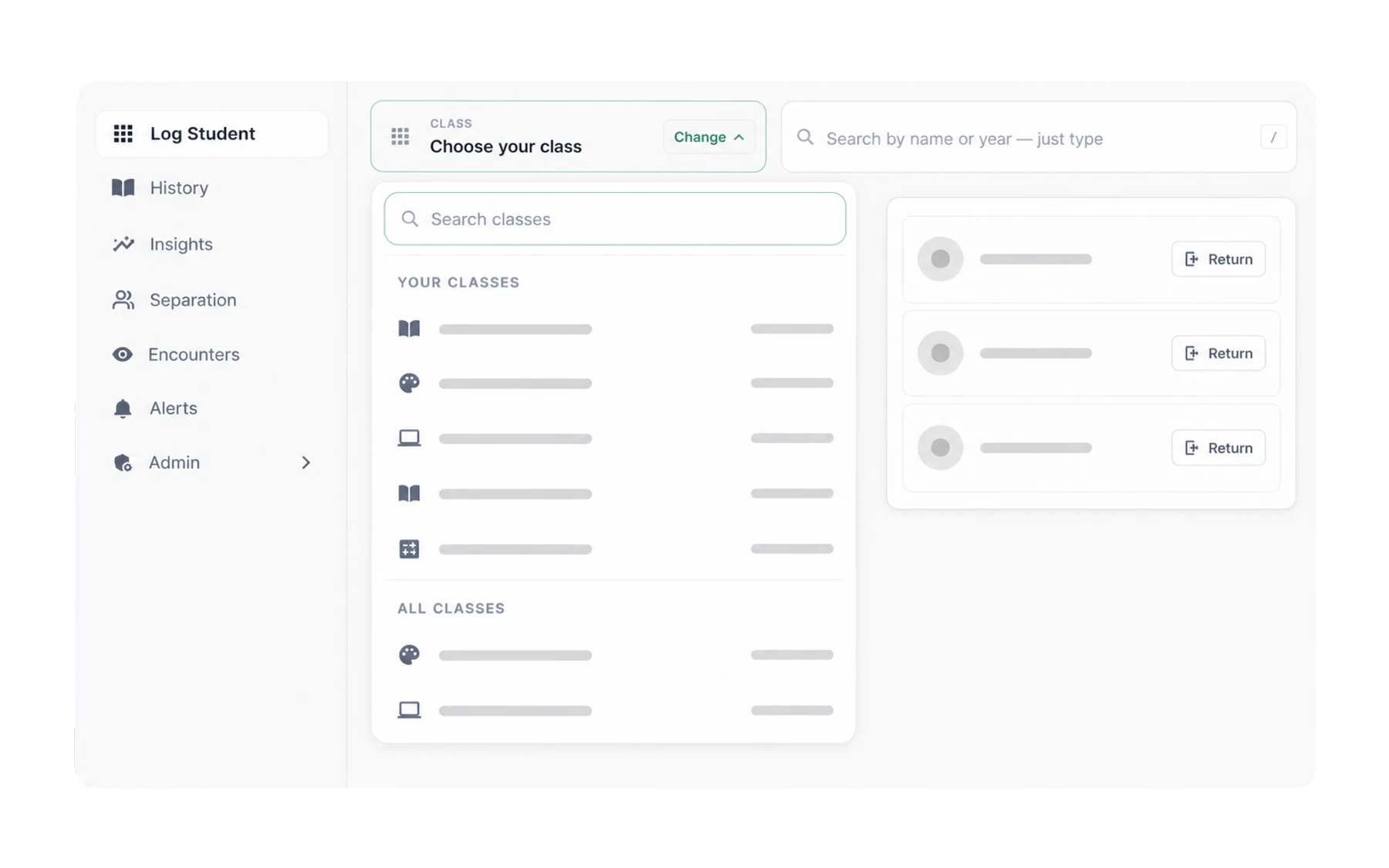
Choose the class once; the roster stays ready for the lesson. Tap the student. Their card outlines in your school colour to show it is selected.
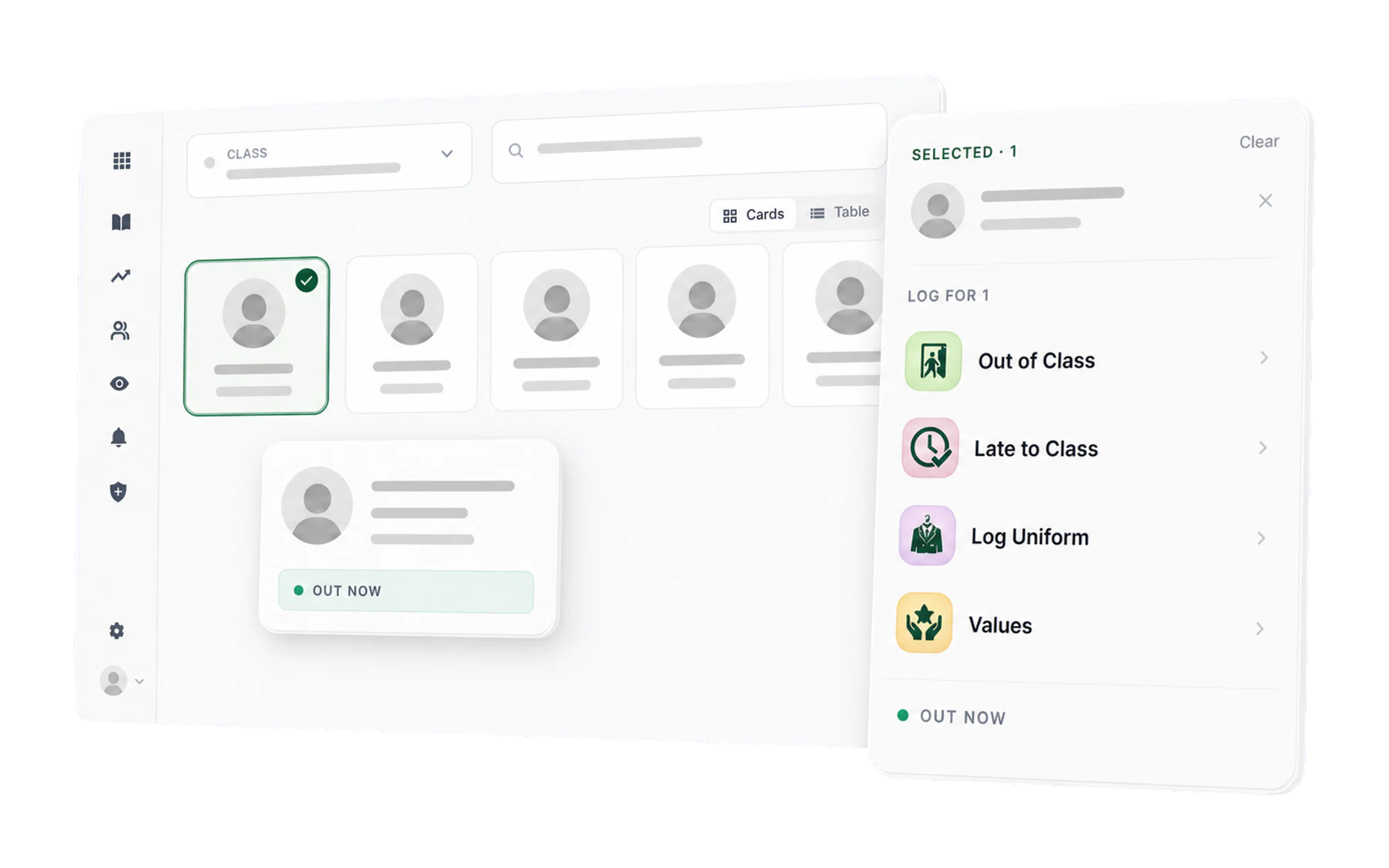
Select a student and the right rail becomes a short list of actions. Choose Out of Class, then tap the destination in the right rail. The list is your school’s own and the pass is created immediately.
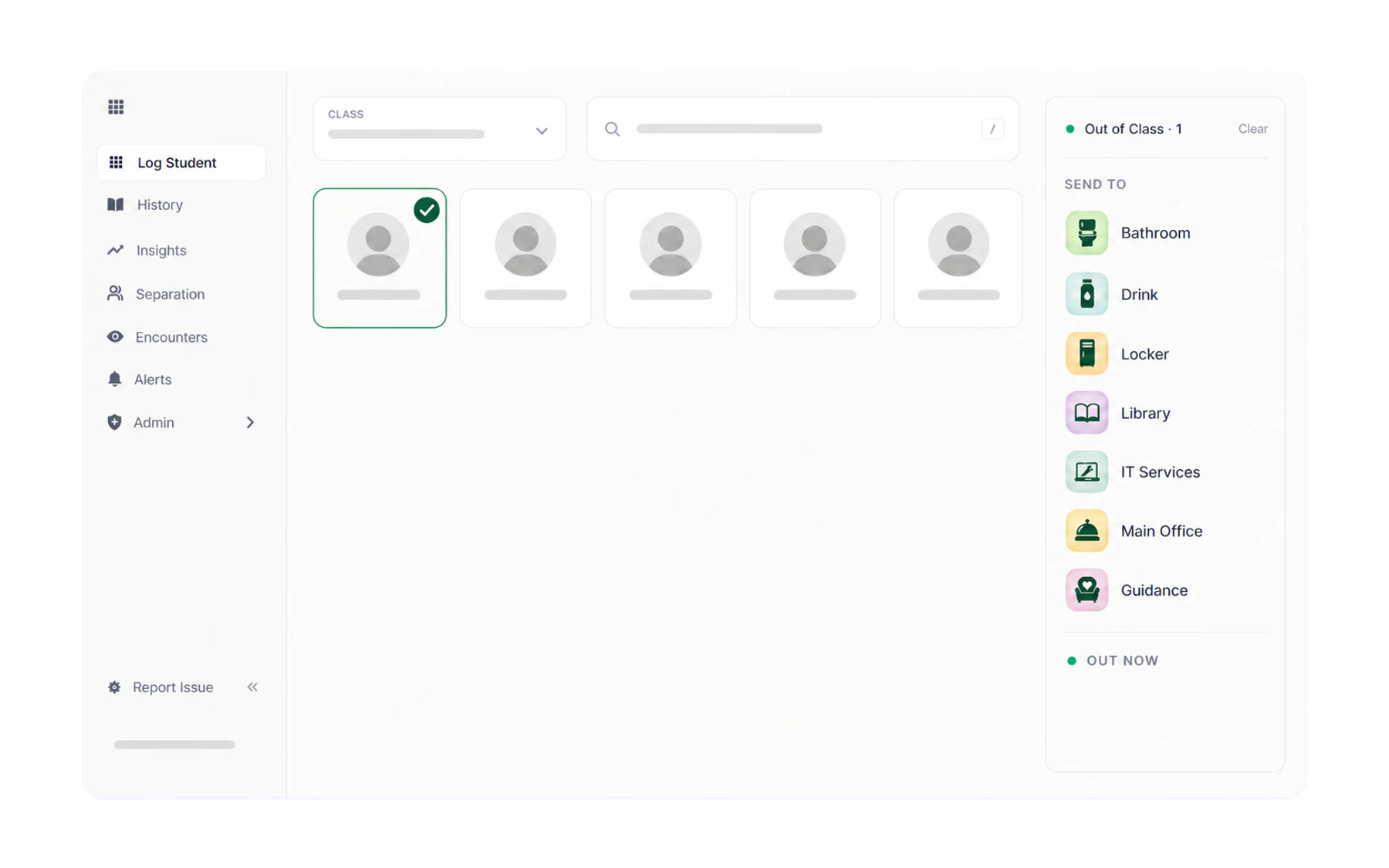
The destination list is your school's own — see “Set up destinations” to change it.
That is the pass created. The student card turns amber, a timer starts, and the pass appears immediately on the kiosk screen for wherever they are heading.
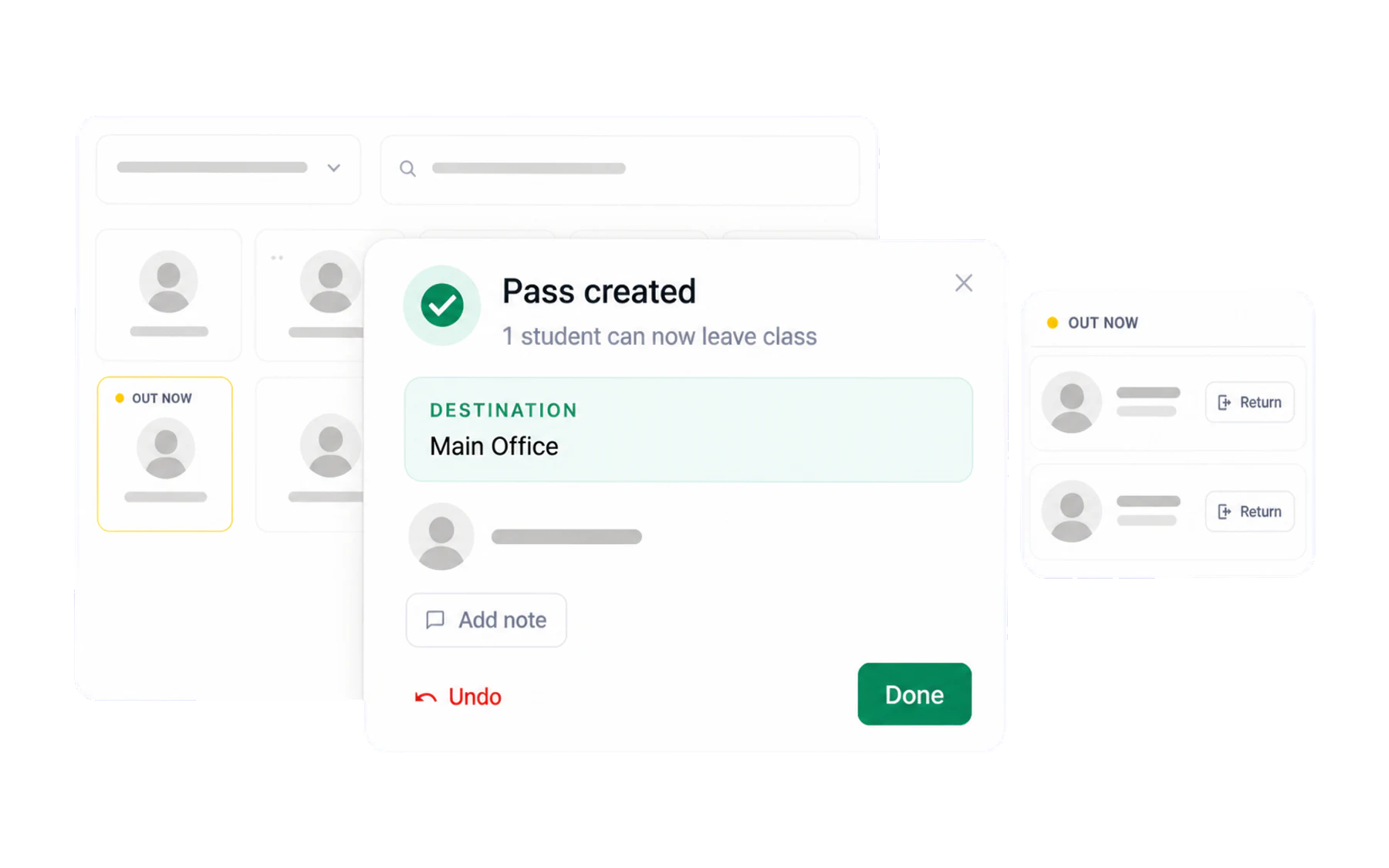
Two things on that panel are worth knowing about:
- Undo removes the pass entirely. Use it the moment you realise you tapped the wrong name — it is cleaner than issuing a pass and closing it a second later.
- Add note attaches a line of context to this pass. Worth using for anything a colleague reading the log later would want to know: “sent to first aid, feeling unwell”.
If the student is not in this class
Use the search box at the top — it reaches every student in the school, which is what you want on yard duty or covering someone else’s lesson. See Find any student, in any class.
If Vero warns you
A red warning at this point means a Separation rule covers this student — somebody they are meant to be kept apart from is already out. You can still send them if your judgement says so; the override is recorded. See What happens when a pass conflicts.
What gets recorded
Every pass stores:
- the student, and the class and lesson they left;
- the destination chosen;
- the staff member who issued it;
- the time out, the time back, and the total duration;
- whether it was issued on a phone, tablet or computer.
Nothing else. Vero records the destination a teacher chose, not where a student physically is — there is no location tracking of any kind.