All guides
Signing in to Vero
Three ways in — your school Microsoft account, a one-time email link, or a password — and what to do when none of them work.
Vero runs in a browser at your school’s Vero address — there is nothing to install. The sign-in screen offers three ways in, and which ones you see depends on how your school is set up.
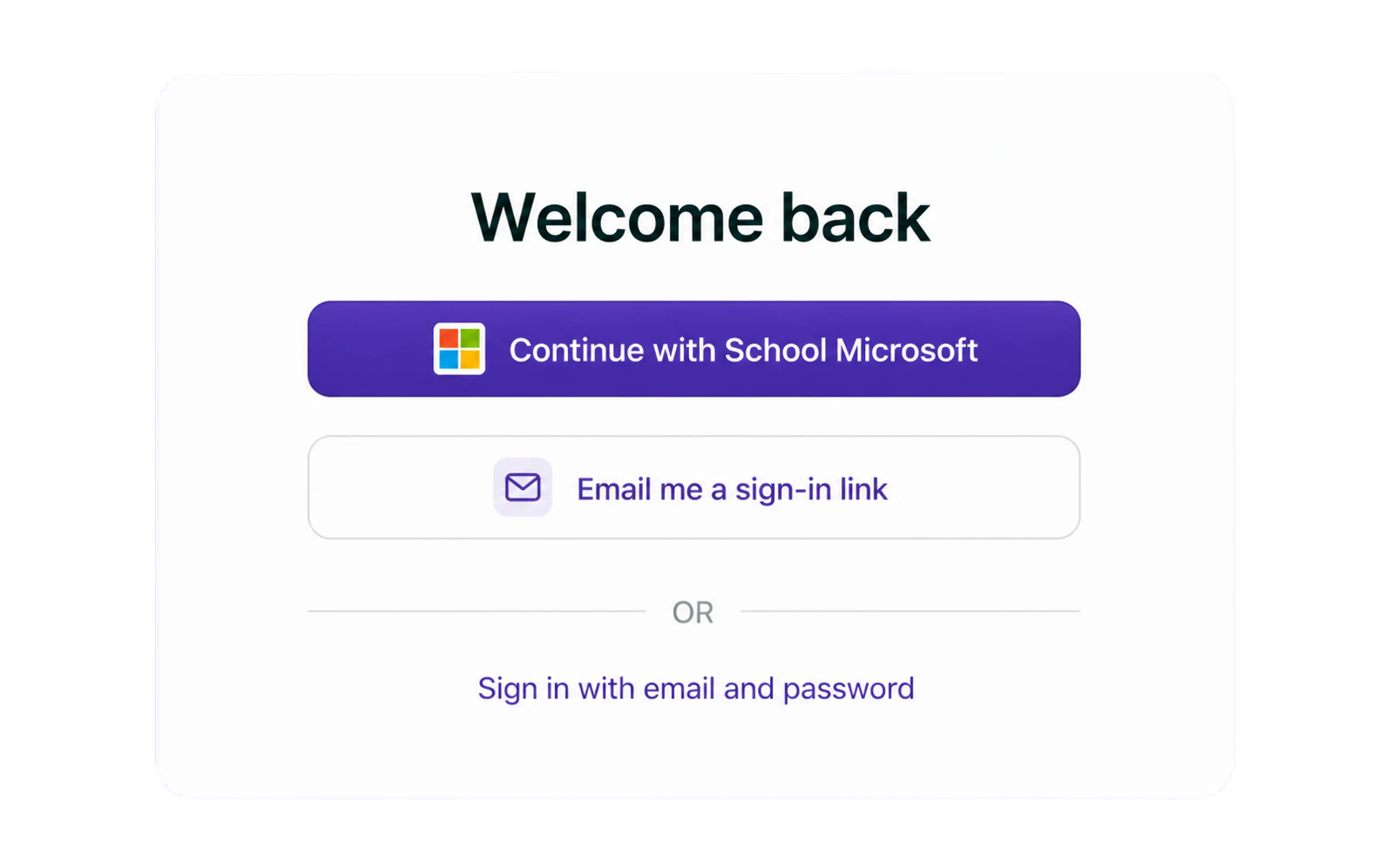
Continue with School Microsoft
The usual route for schools on Microsoft 365. Vero hands you to your school’s own sign-in page; if you are already signed in on that device you land straight in Vero. There is no separate Vero password, so nothing extra to forget — and when IT disables your school account, your Vero access goes with it.
Email me a sign-in link
Vero emails a one-time link that signs you in when you open it. Useful on a shared staffroom machine, on a relief day, or when a password reset has not come through yet. The link expires, and it only works once.
Email and password
Choose Sign in with email and password at the bottom of the options screen. Use your school email address.
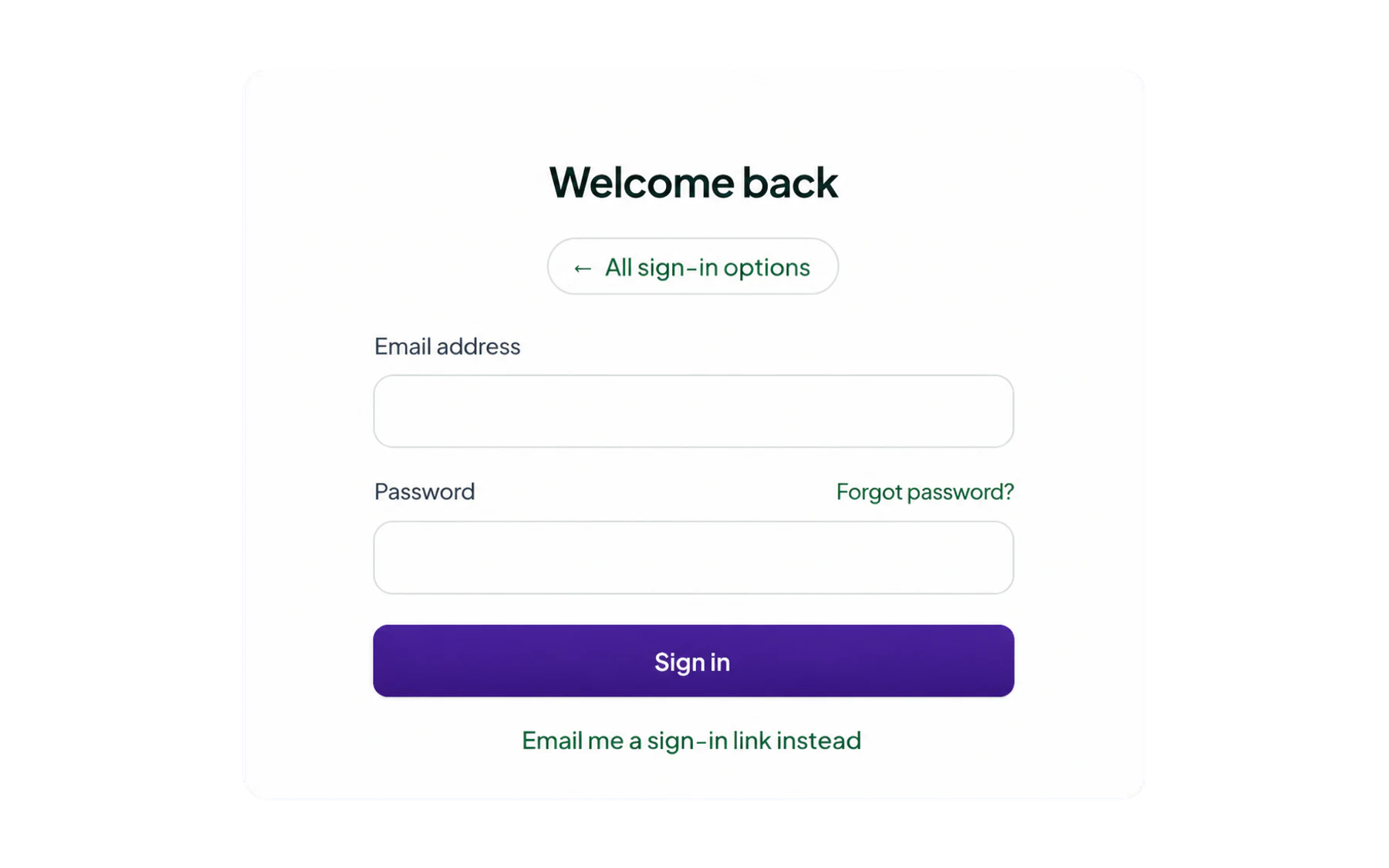
If you have forgotten your password
- On the password form, choose Forgot password.
- Enter your school email address. Vero sends a time-limited recovery link.
- Open the link and set a new password. You are signed in straight away.
The six-digit code (two-factor)
Staff accounts are protected with two-factor authentication, because a staff login can see other people’s children. The first time you sign in, Vero shows a QR code:
- Open an authenticator app on your phone — Microsoft Authenticator, Google Authenticator, or whichever your school already uses.
- Scan the QR code on the Vero screen. If you cannot scan it, type the key shown underneath instead.
- Enter the six-digit code the app generates. That is enrolment done.
- From then on, Vero asks for a current code when you sign in.
When you cannot get in
- “Your access has been removed.” Your account has been deactivated, usually because the staff list synced from your SIS no longer includes you. Your school administrator can restore it.
- Microsoft signs you in but Vero does not. Your school account exists but has no matching Vero profile yet. An administrator adds you under Admin → Staff.
- Nothing arrives by email. Check the junk folder, then ask IT whether mail from
vero.educationis being filtered.