All guides
Using Vero on your phone
Install Vero on your home screen and issue a pass from anywhere in the school.
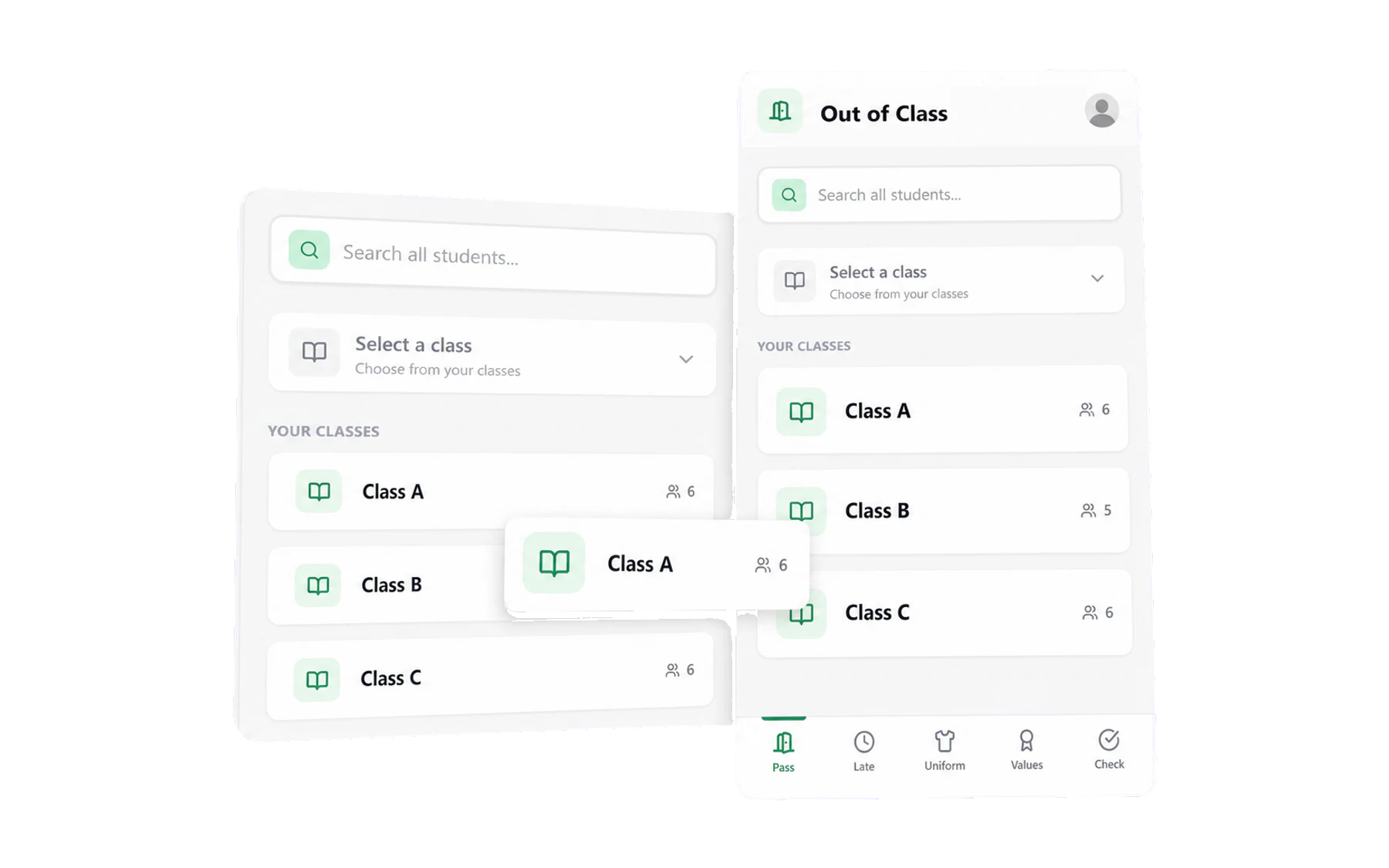
Vero has a mobile workspace built for the corridor rather than the desk: five tabs, big targets, and the four things you actually do while standing up. It installs from the browser — no app store, no second account, no separate password.
Install it on your home screen
iPhone and iPad
- Open the Vero phone address in Safari (it must be Safari — Chrome on iOS cannot install web apps).
- Tap the Share button, the square with an arrow out of the top.
- Scroll down and tap Add to Home Screen, then Add.
Android
- Open the Vero phone address in Chrome.
- Tap the ⋮ menu, then Install app or Add to Home screen.
- Confirm. Vero appears in your app drawer like any other app.
The five tabs
- Pass — pick a class or search, choose a student, choose a destination. The classroom-door job.
- Late — mark students who arrived late to your lesson.
- Uniform — log a uniform issue in the corridor.
- Values — award a school value on the spot.
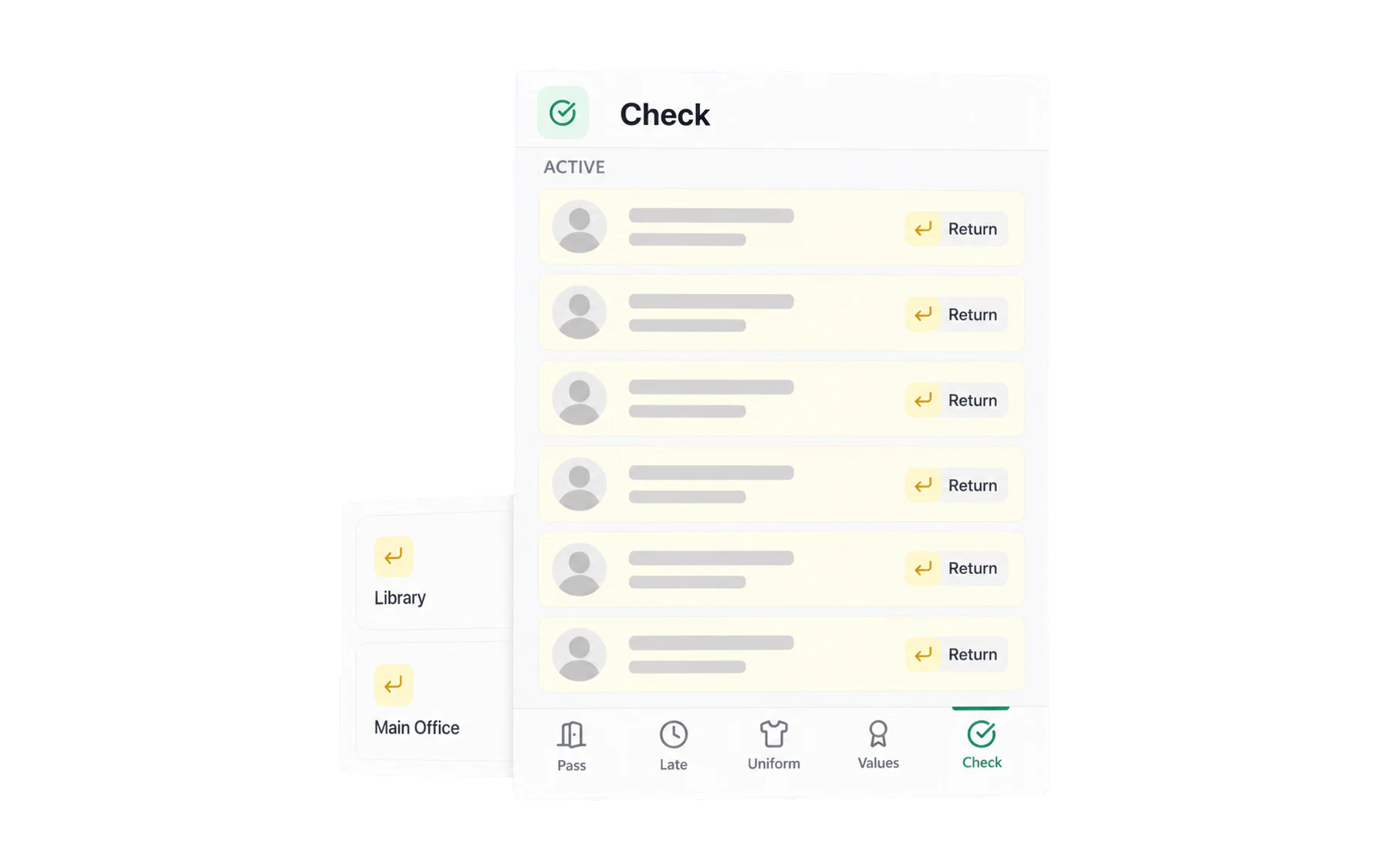
- Check — your active passes, with a return button for each.
What the mobile workspace leaves out
Insights, Alerts, Separation, Kiosk Mode and the admin area are all desktop work — they are for sitting down with, and they need the room. Everything you record on mobile appears in them immediately.
Tablets and shared devices
A tablet gets the same install steps as a phone. For a device that lives in one place and is used by anyone walking past — a library counter, the front office — use a standalone kiosk instead, so nobody has to sign in at all: Run a dedicated kiosk device.