Out-of-class passes
Select a student, choose Out of Class, and manage the pass through to its recorded end.
7 visual guides, from first click to the edge cases.
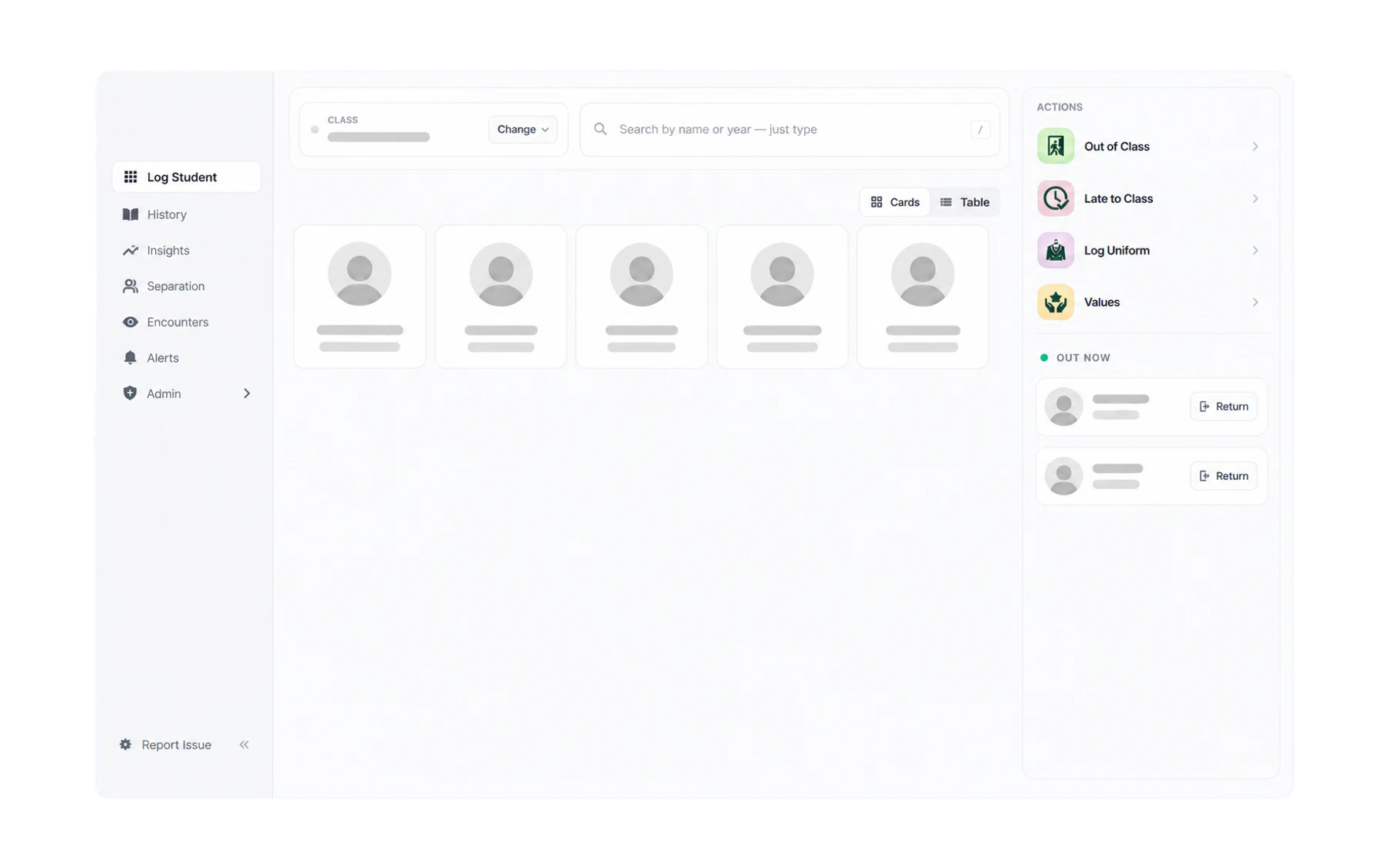
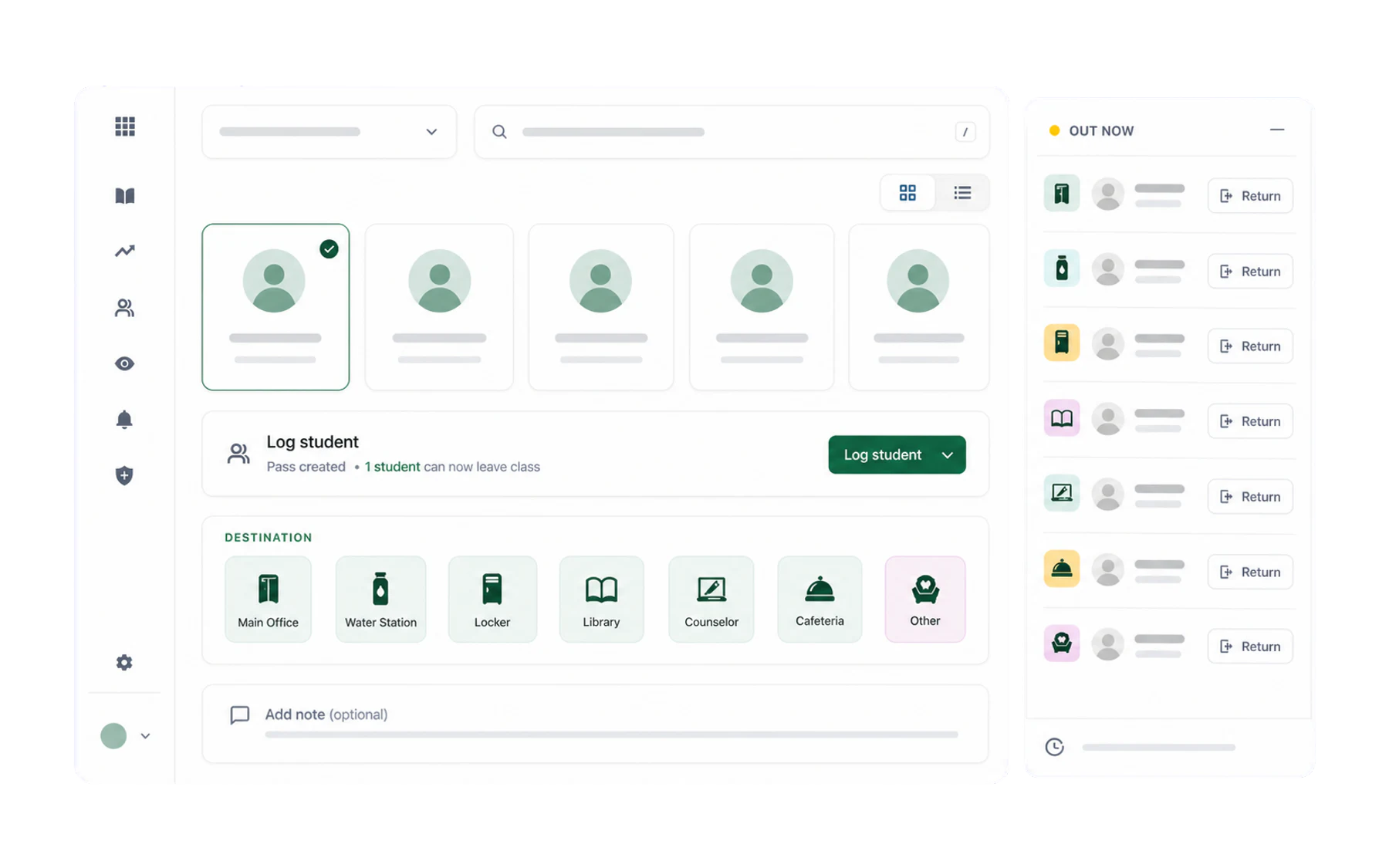
Send a student out of class
Three quick choices: student, Out of Class, destination. That is the whole flow.
Send several students at once
Select a group for sport, assembly or a scheduled activity and issue one pass each.
Find any student, in any class
Use search to issue a pass to a student who is not in the class in front of you — on yard duty, at the office, anywhere.
End a pass when a student returns
Close a pass from the Switchboard, from the kiosk, or let Vero close it for you.
Read the student card
Photo, year and house, today’s pass count, the live timer — everything the card tells you at a glance.
Overdue passes and the time limit
How long a pass runs before Vero flags it, what auto-end does, and where an administrator changes the limit.
Look up what already happened
Search staff-created pass records by student, teacher, expected destination or date.
Other topics
The rest of the help centre, organised around the next job you need to do.
Getting started
Sign in, meet the Switchboard, and learn who can see what.
5 guides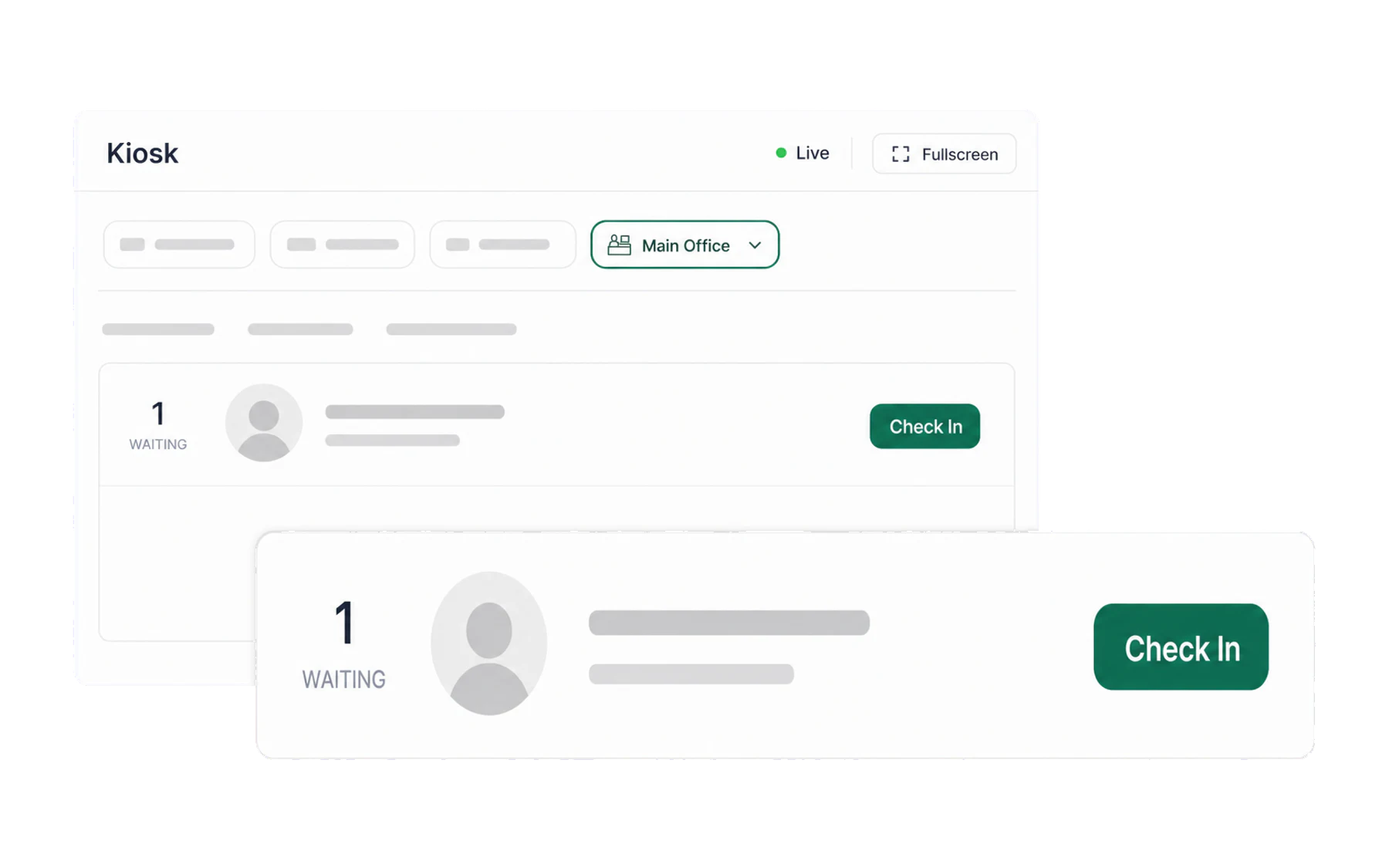
Kiosk & arrivals
A destination check-in screen showing matching open pass records.
3 guides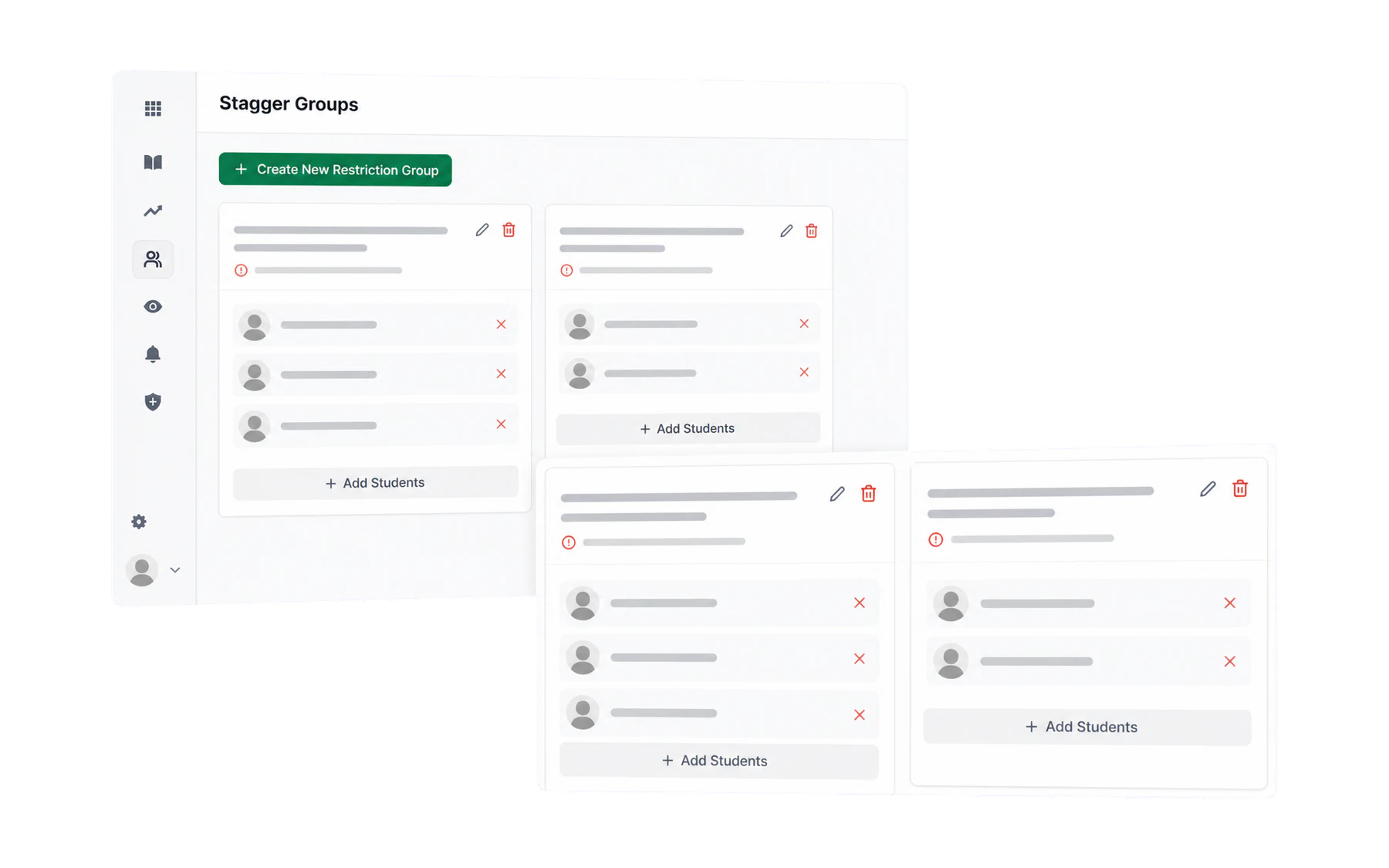
Separation
Configure advisory pass-creation rules for students with an approved separation arrangement.
3 guides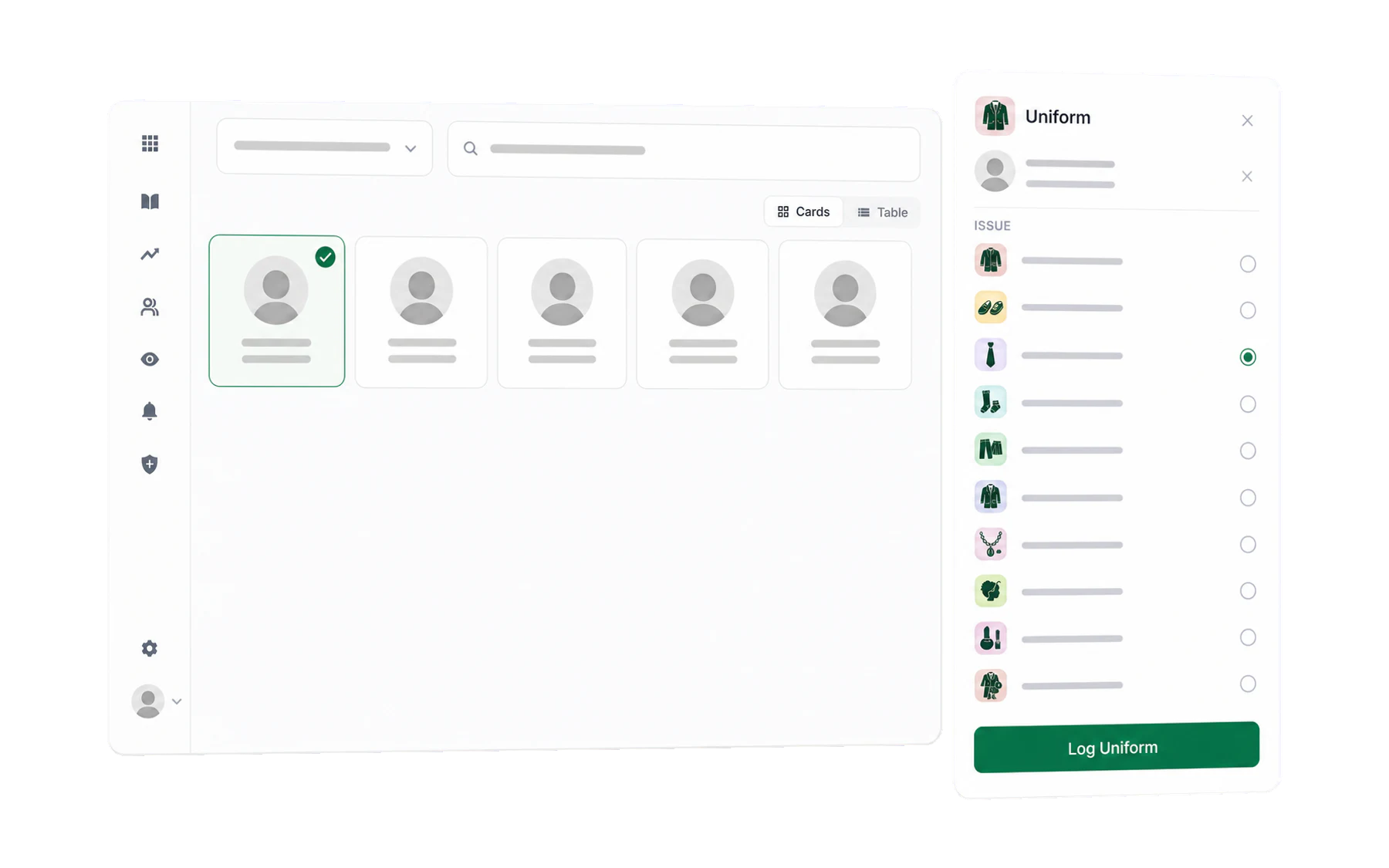
Staff-created student records
Record uniform, values, lateness and confiscation workflows from one staff workspace.
4 guides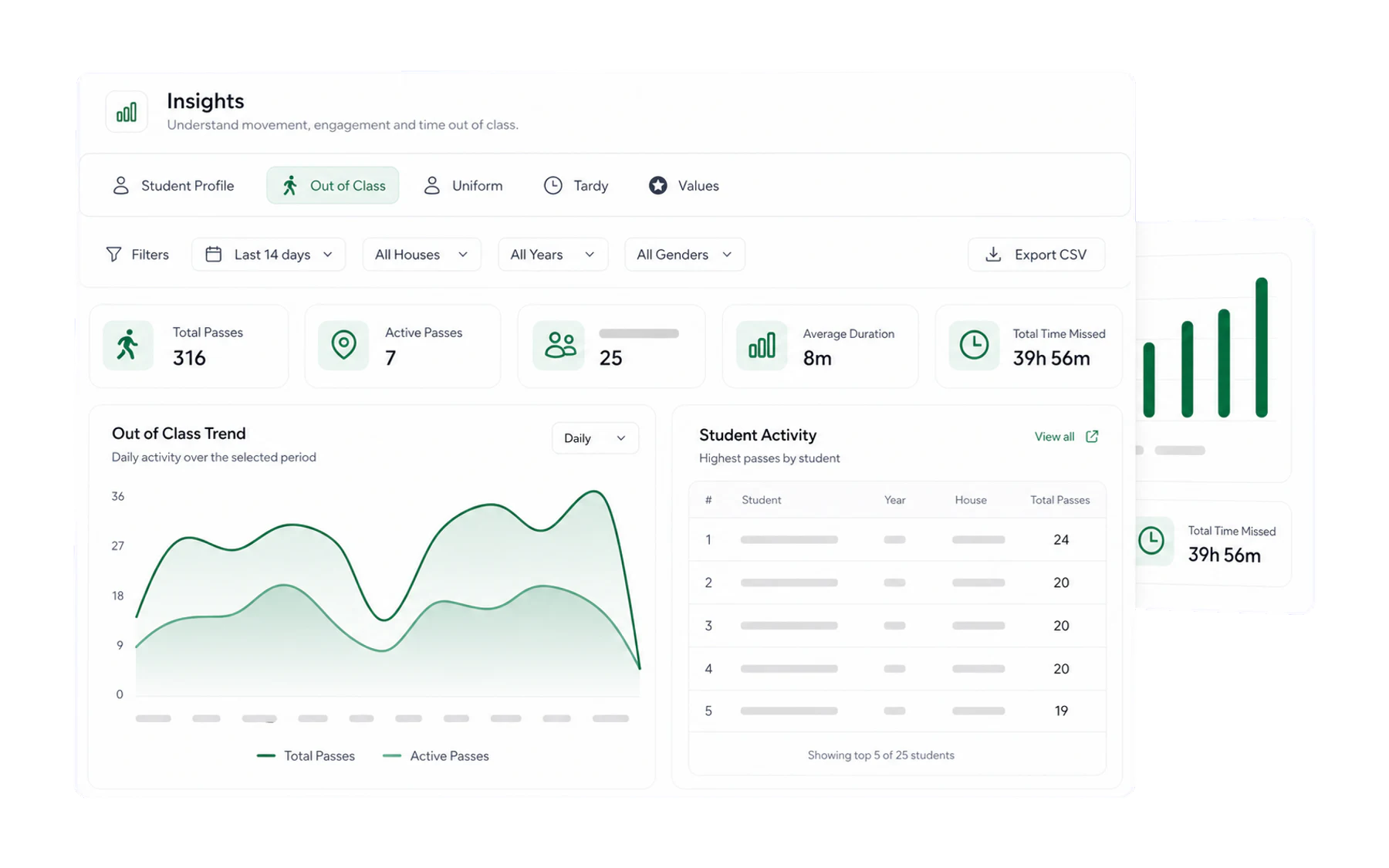
Insights & reporting
Summarise records created in Vero for an authorised school review.
5 guides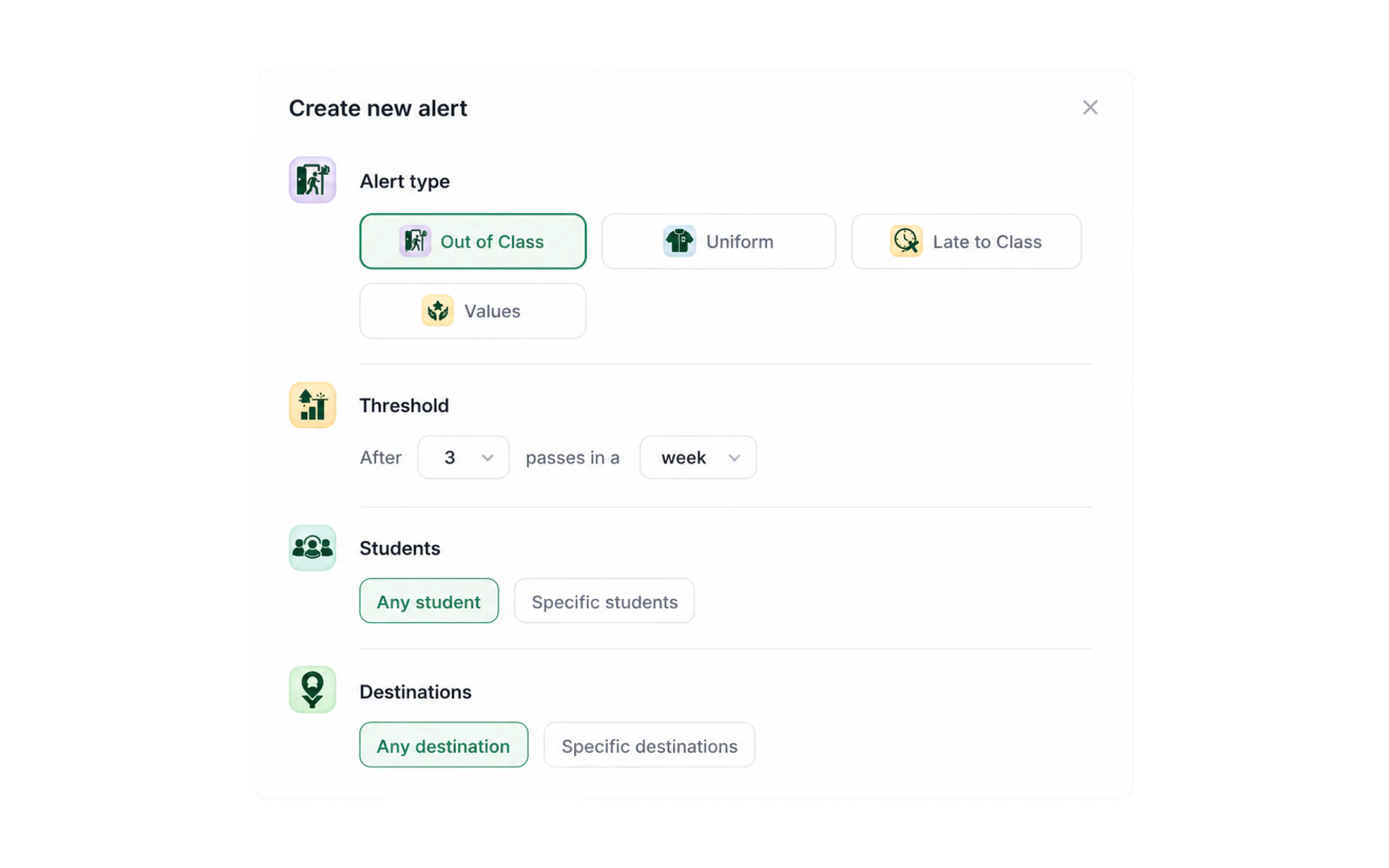
Alerts
Configure role-restricted notifications for defined record-review rules.
2 guides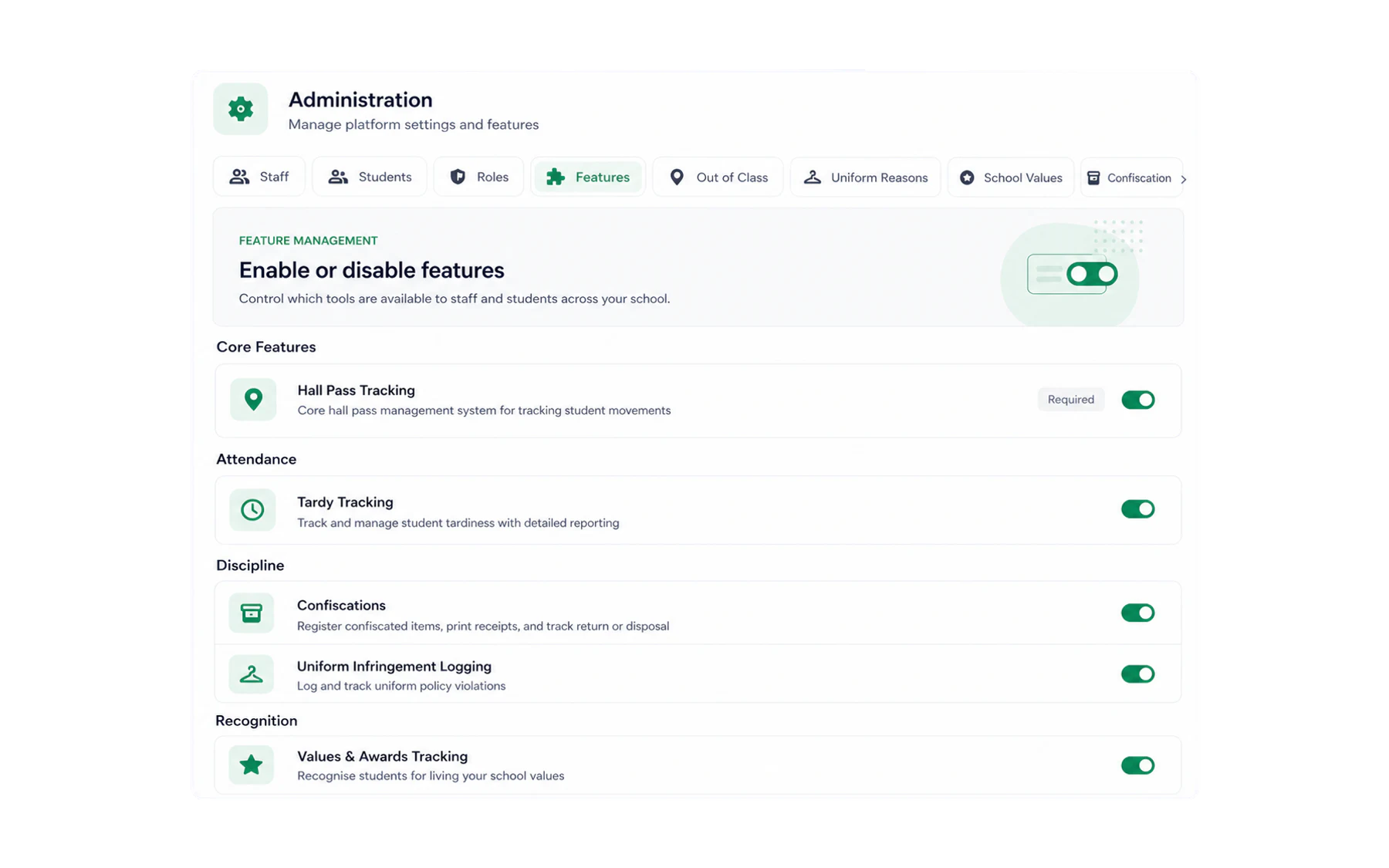
School administration
Set Vero up once so everything above just works.
9 guides
Can’t find it?
Email support@vero.education and a human in Australia will answer within four business hours.