All guides
Check students in when they arrive
Record a staff-confirmed check-in and understand what the recorded interval does and does not show.
Checking a student in records that a staff member confirmed their arrival at the expected destination. The interval is measured between pass creation and that staff action; Vero does not observe the route taken or continuously track the student’s location.
Doing it
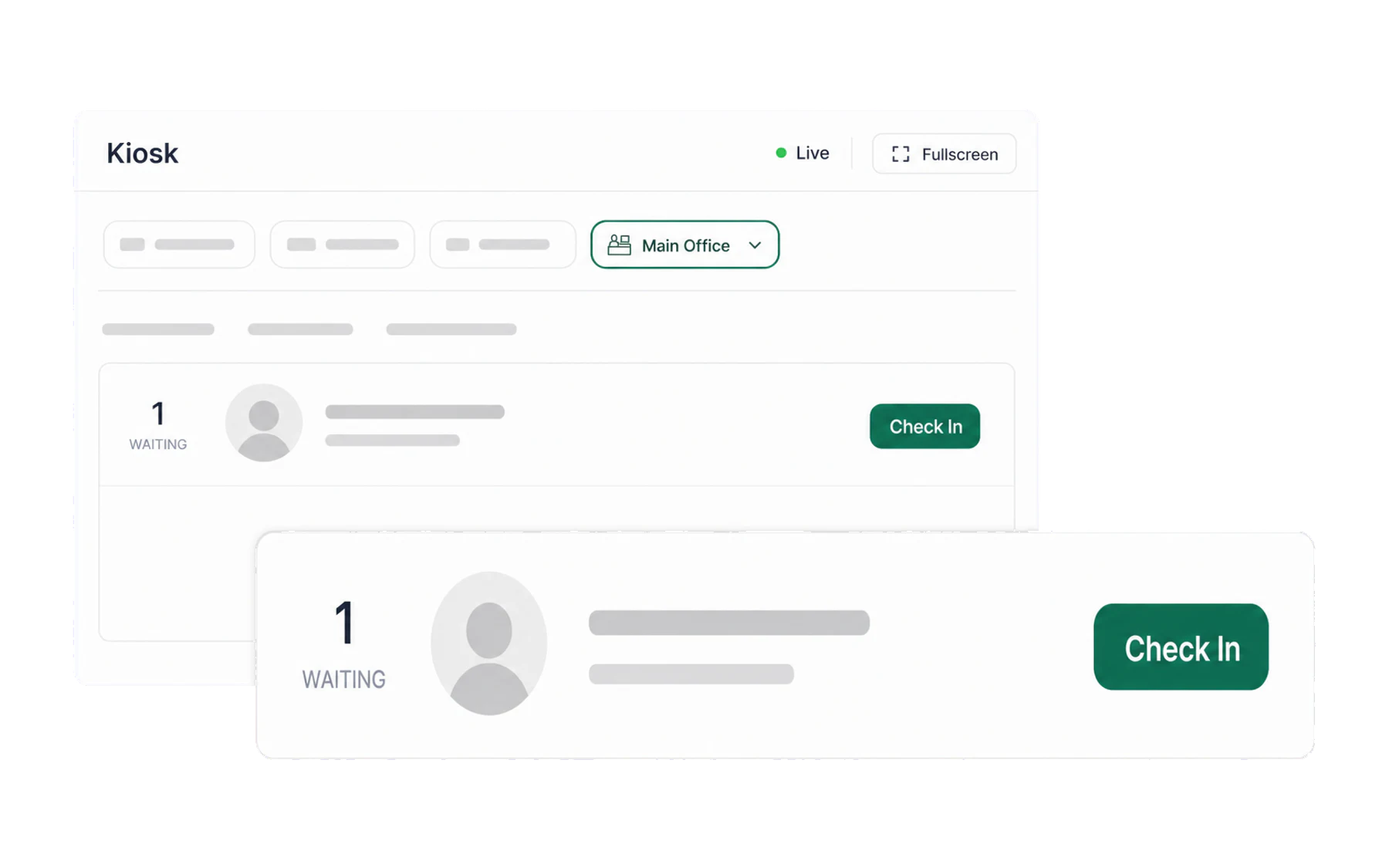
When a student arrives, find their card and tap Check In. The card moves fromEn route to Arrived and the arrival time is written against the pass. On a busy screen, use the search field to jump to a name rather than hunting.
The card that stays red
A card marked Late is an open pass record that has exceeded your school’s time limit without a recorded check-in. Staff should validate the record and follow the school’s operational process; the status does not prove where the student is or whether they arrived without being checked in.
Records without a check-in
The card stays in En route until the pass ends or a staff member records a check-in. A blank arrival time means only that no check-in was recorded. It is not proof that the student did not arrive or went somewhere else.
Looking back at the day
The history icon in the top right of the kiosk shows recent check-ins at this screen. It answers whether a check-in was recorded at that screen at a particular time, without leaving the board.
Why bother
Two reports get materially better once arrivals are recorded:
- Recorded check-in interval. Vero can report the time between pass creation and the staff check-in action. It is not a measurement of the student’s route or actual travel time.
- Record completeness. Passes without a check-in can be reviewed to improve the destination’s check-in workflow. The missing field is not a conclusion about the student.