All guides
Assign roles and permissions
Give a colleague Insights, alerts, confiscation returns, or the admin area.
Admin → Roles is where you decide who can see the analytics, who can process a confiscation return, and who can change the school’s settings. Everything else about Vero is downstream of this screen.
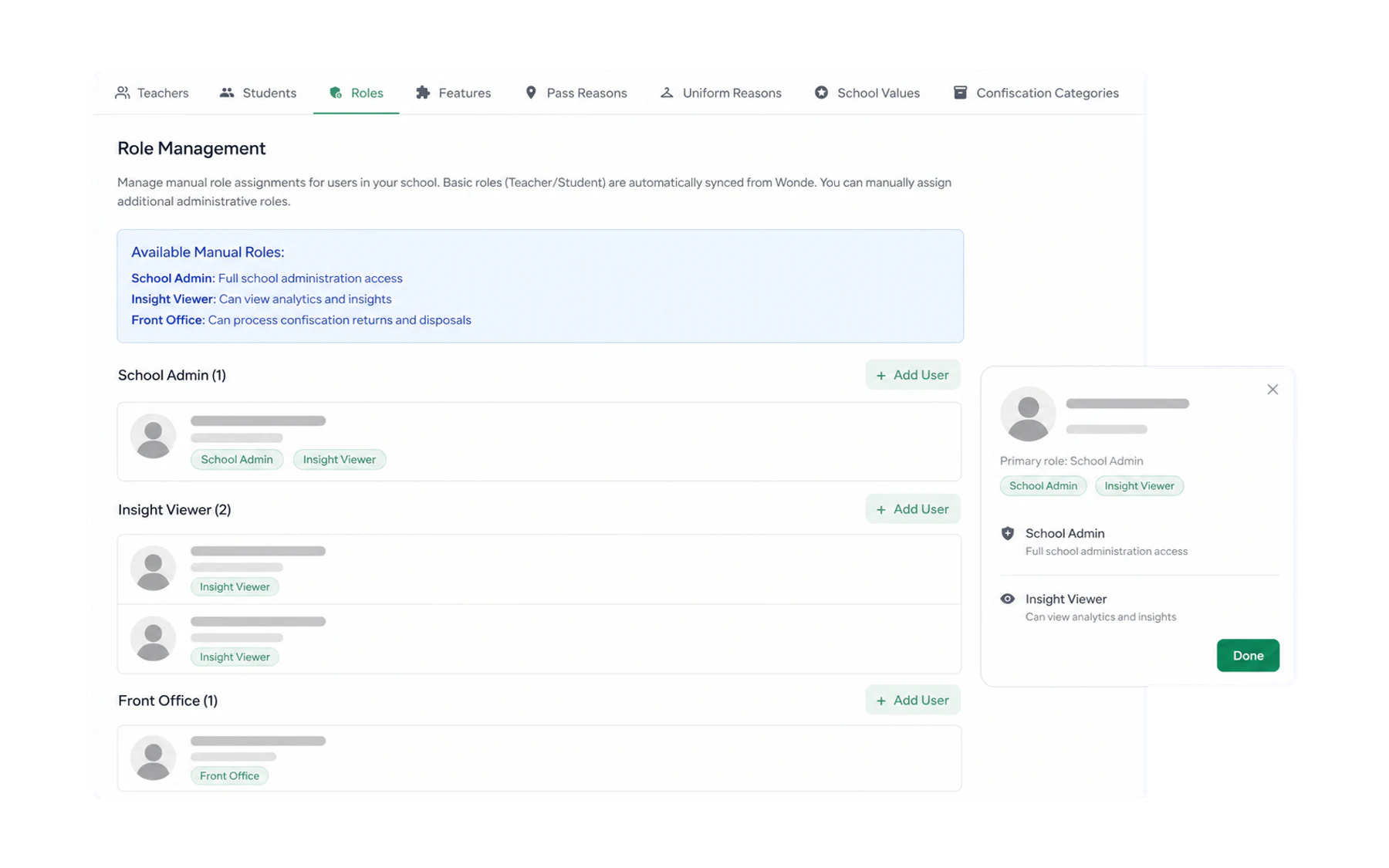
Assigning a role
- Open Admin → Roles.
- Find the staff member by name.
- Grant the role. It takes effect the next time they load Vero — no sign-out needed on your side.
The four you will use
- Teacher — the default. Issue and end passes, use the modules, see the movement log. Every teaching staff member has this.
- Insight Viewer — adds Insights, student profiles, exports, alert rules and Smart Separation. The role for year coordinators, heads of house, wellbeing and leadership.
- Front Office — a narrow role for administrative staff: confiscation returns and disposals, and nothing else. It exists precisely so the front desk does not need a leadership-level account.
- School Admin — the whole Admin area. Keep it to two or three people.
Deciding who gets Insight Viewer
This is the judgement call the screen really asks you to make. The role shows aggregated behaviour data about identifiable children.
The useful test is responsibility: does this person have a pastoral or leadership duty towards a cohort? A year coordinator does. A head of house does. A classroom teacher curious about a class generally does not — and their access to day-to-day pass records already supports their operational role.
Reviewing it
Once a year, walk the list and ask two questions of every row: does this person still hold this responsibility, and would you be comfortable explaining this grant to a parent? Remove anything that fails either.
Related
- Roles: who can see what — the version to send to staff.
- Add and manage staff