All guides
Add and manage staff
Invite teachers, deactivate leavers, and keep the staff list matching reality.
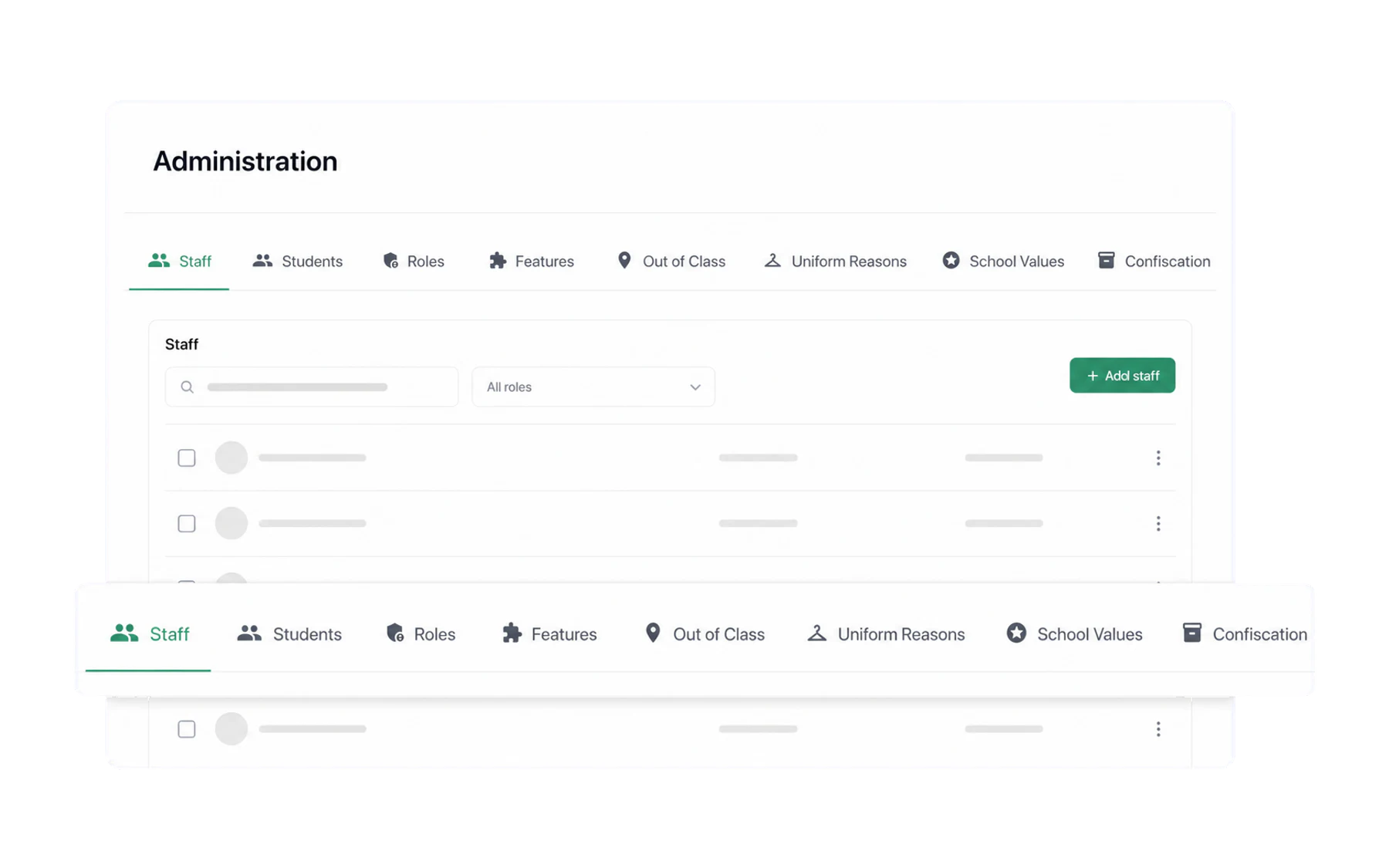
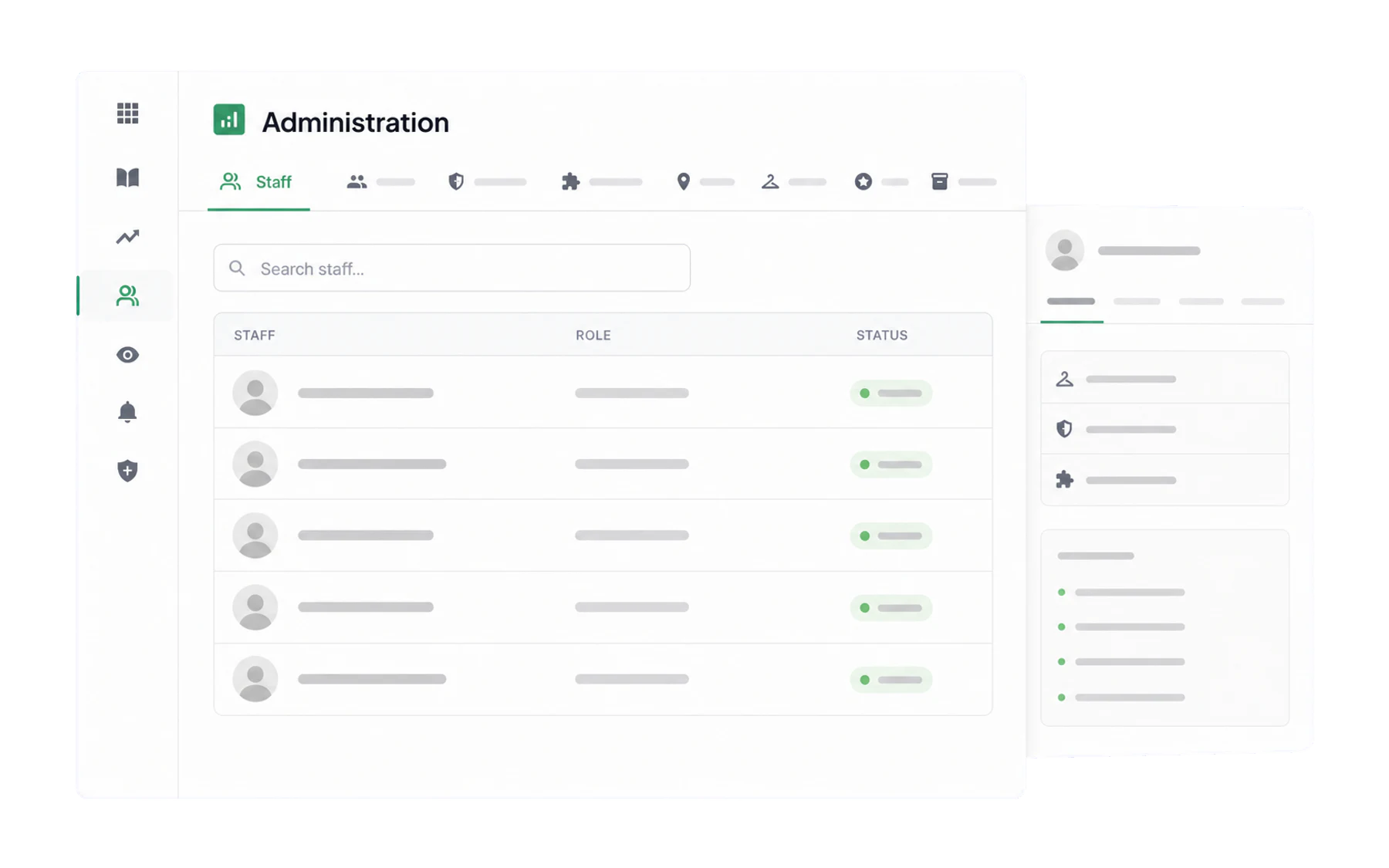
Admin → Staff is the staff list: who can sign in, what they can do, and who no longer works here. How much of it you touch depends on whether your school syncs from an SIS.
If your school syncs from an SIS
The list maintains itself. Staff arrive from your SIS through Wonde on a daily sync where staff data is supported, and staff who disappear from it are deactivated. Adding a new teacher to Vero means adding them to your SIS — which is where they need to be anyway.
Two things still happen here: assigning roles, and the occasional manual account for someone who legitimately is not in the SIS staff list — a long-term relief teacher, a chaplain, a wellbeing contractor.
If your school does not
You own the list. Add staff individually here, or in bulk with a spreadsheet — see Import users from a CSV. A staff row needs an email address, a first name and a surname; everything else is optional.
When someone leaves
Deactivate, do not delete. A deactivated account cannot sign in, but every pass, uniform log and confiscation that person recorded stays exactly as it was — which is what an investigation six months later depends on. Deleting a staff member would leave those records unattributed.
Someone cannot sign in
- “Your access has been removed.” The account is deactivated — usually because a sync dropped them from the SIS staff list. Reactivate here, then check why the SIS lost them.
- Microsoft works, Vero does not. No matching Vero profile. Add them here with the same email address their school account uses.
- Wrong menu. They are signed in, just without the role they expected. See Assign roles and permissions.
Related
- Manage students and photos
- Signing in to Vero — worth sending to a new starter.