All guides
Export to CSV
Export the full data set behind an Insights view to CSV for analysis in Excel or Google Sheets, with the active filters applied.
Vero exports the records behind an Insights view as a CSV file for authorised school analysis in Excel or Google Sheets. The export follows your selected filters and includes the complete data set behind that view, not just the rows visible on screen. You need an administrator or Insight Viewer role to access Insights.
Export CSV sits at the right-hand end of the filter row on each Insights tab. Choose the question and date range before downloading, so the file matches the review you are preparing.
- Set your filters first. Date range, house, year level. The export follows them exactly.
- Click Export CSV. The file downloads immediately.
- Open it in Excel, Numbers or Google Sheets.
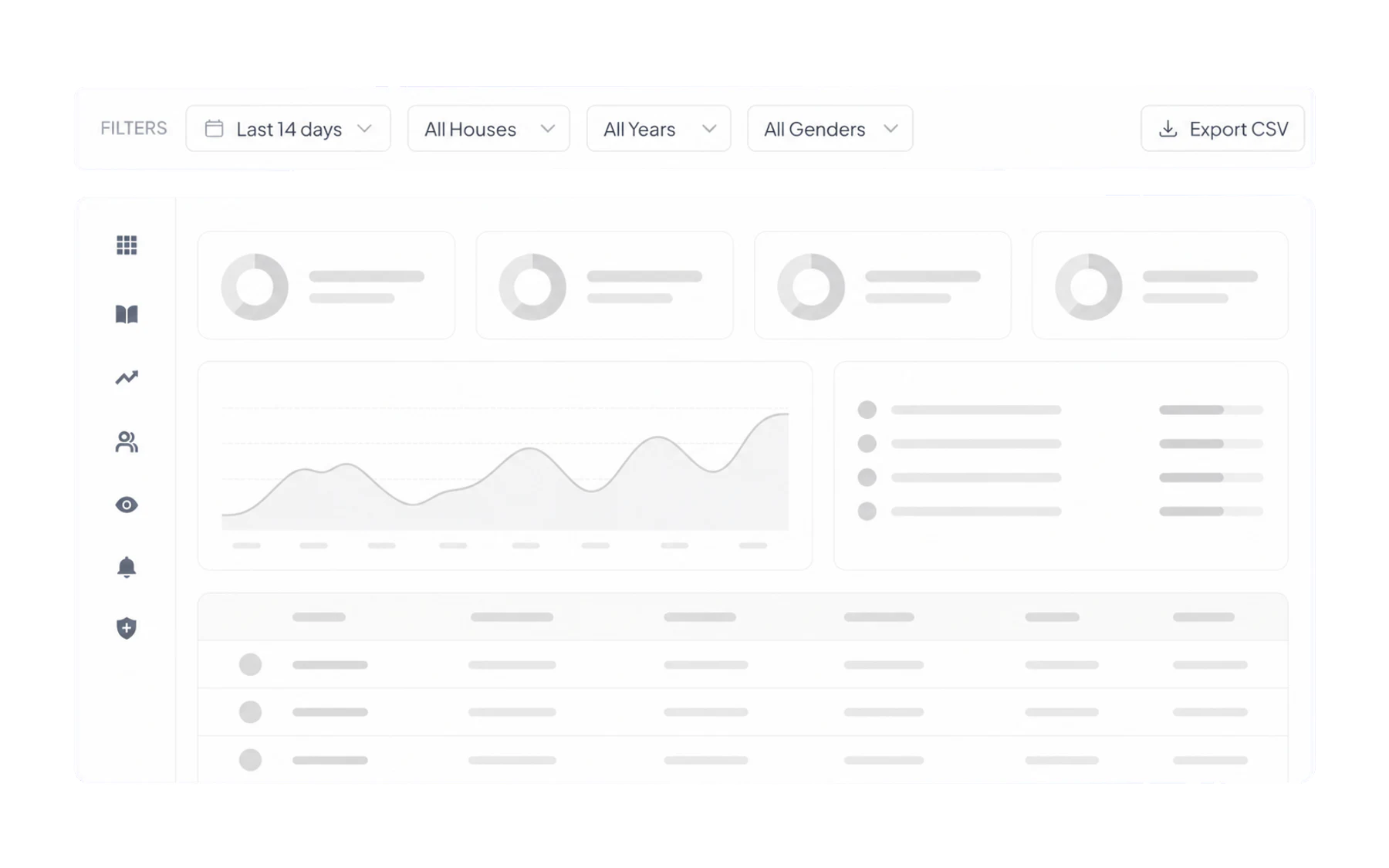
A pass-record review example
To review a year level's pass records for a term, open the Out of Class tab and select that term's date range and year level. Check the filtered view, then export it. Keep a note of those filters with the file so another authorised staff member can reproduce the same selection. This is an illustrative review, not a customer result.
Recorded pass duration is the time a pass remained open. It does not verify physical whereabouts or prove that lesson time was missed. Consider staff recording practices and the student's circumstances before drawing a conclusion from a spreadsheet.
What to do with it
- A pivot table to cross-tabulate in ways Insights does not offer — destination against period, say.
- A chart for a board pack, in whatever template your school already uses.
- Joining it to other data — attendance, assessment — using student identifiers your school already holds.
- A snapshot taken at a point in time, kept alongside a report so the numbers in it can be checked later.
Handling it properly
An export is student data that has left the system that protects it. Once it is a file on a laptop, Vero’s roles and permissions no longer apply to it — your school’s privacy policy does.
If you need it regularly
If you need a notice when records cross a school-defined threshold, consider an optional alert digest. It summarises records matching your configured review rules. Fixed-timetable report emails independent of those rules are not currently available; keep using a filtered CSV export for a regular report.
Related
- Ask Insights a question — get the filters right before exporting.
- Build a report for a meeting — the recipe most schools want.